Most PPC teams know they should audit their competitors. Few actually do it well.
The typical approach: someone opens a spreadsheet, googles a few competitor names, screenshots whatever ads show up, pastes them in, and calls it an audit. The spreadsheet gets shared once, lives in a forgotten Slack thread, and is never updated.
The real problem isn't laziness — it's lack of structure. Without a repeatable framework, competitor audits take too long, miss too much, and produce insights that never connect to campaign decisions.
This article gives you a 6-step framework that produces a complete Google Ads competitor audit in 30 minutes. It covers every platform, every ad format, and every angle — and it's repeatable so you can run it quarterly without reinventing the process.
Why Most Competitor Audits Fail
Before the framework, let's name the common failure modes. If your current audit process looks like any of these, the output is unreliable:
Cherry-picking visible ads. If you only research what shows up when you google a competitor, you're seeing one ad, in one location, at one moment in time. You're missing their Display creatives, YouTube campaigns, Shopping ads, and everything they run in other regions.
No repeatability. If the audit is different every time someone does it — different depth, different competitors, different format — you can't compare results across quarters. Trends become invisible.
Data without decisions. A list of competitor ads isn't an audit. An audit connects what competitors do to what your team should do next. Without a framework that forces actionable takeaways, the output is trivia.
Manual data collection. If each competitor takes 30 minutes of manual searching, a 5-competitor audit takes 2.5 hours before you've analyzed anything. Most teams quit after competitor #2.
The framework below solves each of these. You'll pull complete data in minutes (not hours), follow the same steps every time, and produce an output that maps directly to campaign decisions.
What You Need
The 30-minute framework uses two things:
- Google Ads Transparency Extension — a free Chrome extension that pulls every ad from Google's Ads Transparency Center for any domain. It handles Search, Display, YouTube, Shopping, Google Play, and Maps ads across 238 countries. Instead of browsing ads one at a time, you get the full dataset in seconds.
- A spreadsheet — Google Sheets, Excel, or whatever your team uses. The extension exports to CSV, so the data flows directly into your analysis template.
That's it. No paid tools, no subscriptions.
The 30-Minute Competitor Audit Framework
Here's the process, broken into 6 steps. Each step has a clear input, a clear action, and a clear output.
Time Budget
- Steps 1–2: 10 minutes (data collection)
- Steps 3–5: 15 minutes (analysis)
- Step 6: 5 minutes (documentation)
Pull All Ads for Each Competitor (5 minutes)
Start with your competitor list. For a focused audit, pick 3–5 direct competitors. For a market landscape audit, go up to 8–10.
For each competitor:
- Navigate to the competitor's website in Chrome
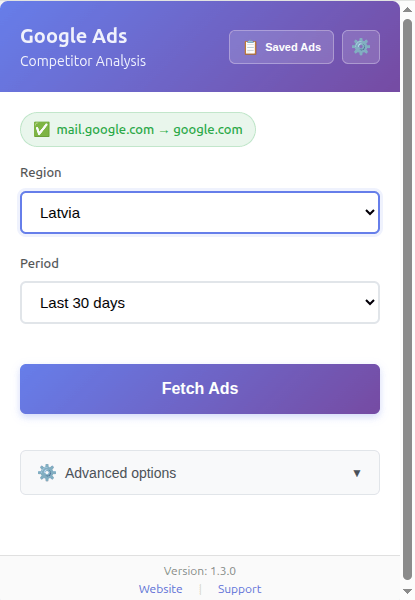
- Click the extension icon — it auto-detects the domain
- Set Region to your primary market (e.g., US) — or leave on "Anywhere" for a global view
- Set Period to "Last 30 days" for a current snapshot, or use "Custom Range" to target a specific campaign window
- Leave Platform on "All Platforms" (under Advanced options) — you'll filter later
- Click "Fetch Ads" and let it run
Repeat for each competitor. The extension pulls data in the background, so you can start the next competitor while the previous one is still loading. Each fetch typically takes seconds and returns 50–500+ ads depending on the competitor's activity level.
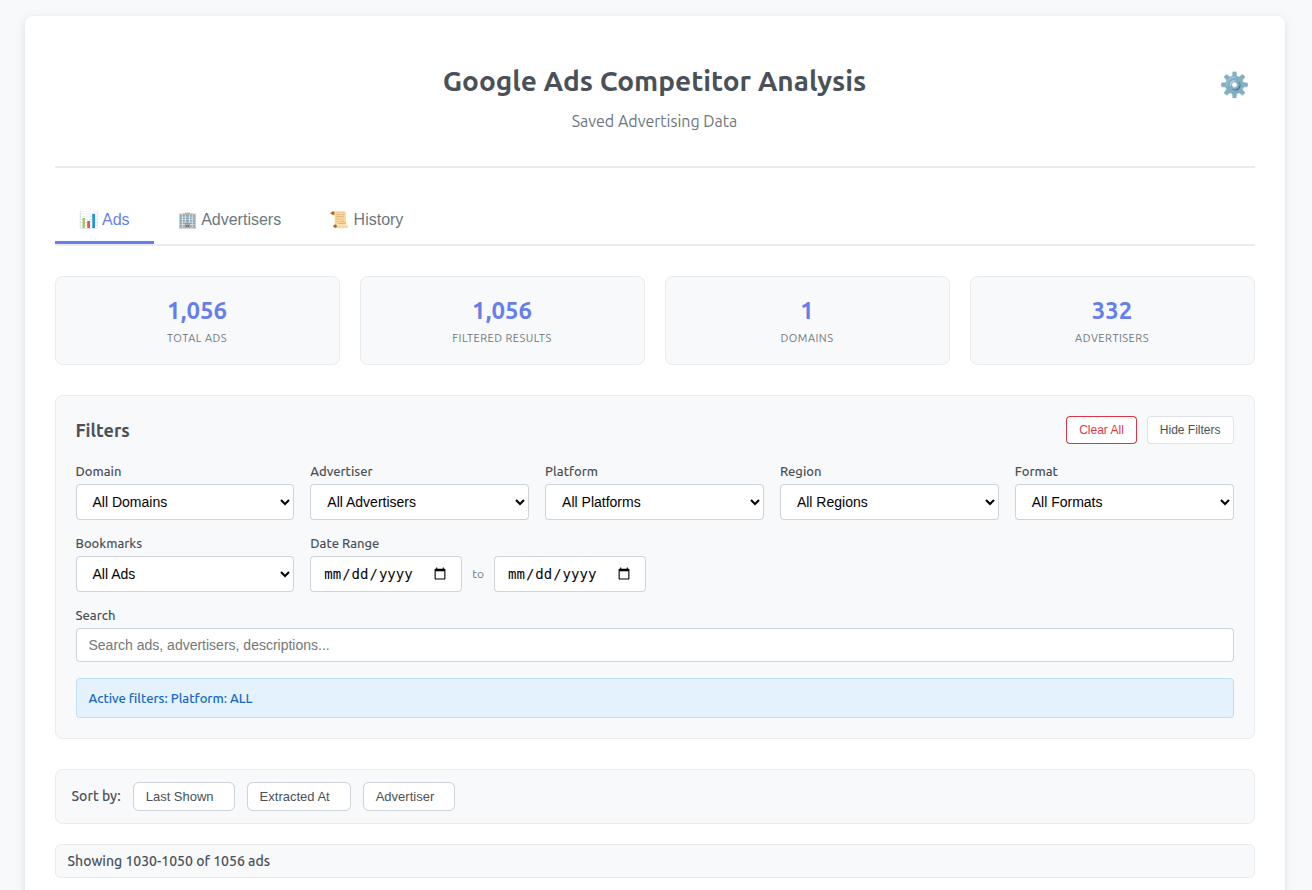
Once all competitors are pulled, click "Saved Ads" in the popup to open the viewer. All competitor data is now in one place.
Filter by Platform to Map Channel Allocation (5 minutes)
Open the viewer's filter bar and start with the Platform filter. This is where you assess where each competitor spends.
Go through each platform one by one:
Filter: Search. Count the ads. Read 10–15 headlines. Note the dominant messaging angle and primary CTA. This is what you're directly competing against in the text ad auction.
Filter: Display. Count the ads. Look at banner sizes, visual styles, and copy overlays. Are they running awareness campaigns? Retargeting? Product-focused creatives?
Filter: YouTube. Count the ads. Look at video thumbnails and titles. Are they present at all? If yes, what format — bumper, in-stream, discovery?
Filter: Shopping. Count the ads. Look at product titles, images, and descriptions. Relevant for e-commerce competitors — tells you which products they push hardest and how they optimize their feed.
Record your findings in a simple table:
| Competitor | Search | Display | YouTube | Shopping | Primary Channel |
|---|---|---|---|---|---|
| Competitor A | 120 ads | 30 ads | 0 ads | 15 ads | Search-heavy |
| Competitor B | 45 ads | 85 ads | 20 ads | 0 ads | Display-heavy |
| Competitor C | 200 ads | 10 ads | 5 ads | 50 ads | Search + Shopping |
This table alone tells you where the competitive density is high (Search, usually) and where there might be undercontested space (YouTube, often).
Run this audit with one click
The Google Ads Transparency extension pulls all competitor ads — Search, Display, YouTube, Shopping — in seconds. Free, no account required.
Add to Chrome — FreeAnalyze Messaging, Offers, and Positioning Patterns (5 minutes)
With ads fetched and platform counts recorded, scroll through the viewer and manually read the ad copy. Focus on Search ads first — headlines and descriptions are where the real messaging strategy lives. Spend 60–90 seconds per competitor, skimming 10–20 ads.
As you browse, look for three categories of patterns:
Pricing language. Do competitors mention "free trial", specific price points, discounts, or money-back guarantees? Note which ones lead with price and which avoid it entirely.
Positioning claims. Who claims to be "#1" or "the best"? Who leads with social proof ("trusted by 10,000+ teams")? Who emphasizes features like AI or automation? These are the angles they've bet their messaging on.
Urgency and CTAs. What action does each competitor ask for — "Start Free Trial", "Get a Demo", "Learn More"? Is anyone using scarcity or time pressure? CTA patterns reveal how they think about conversion.
As you go, record what you observe:
| Theme | Competitor A | Competitor B | Competitor C | Insight |
|---|---|---|---|---|
| Free trial offer | Yes — prominent | Yes — mentioned | Not used | Market standard — match or counter |
| Discount / % off | Not used | 25% off in several ads | 30% off in several ads | B and C run promotions, A doesn't |
| Leadership claim (#1) | Yes — multiple ads | Not used | Not used | A claims leadership — challenge or avoid |
| AI / automation | Yes — heavily used | Occasionally | Not used | A owns this angle — differentiation risk |
Five minutes of focused reading gives you a complete picture of the competitive messaging landscape — what claims, offers, and angles are already saturated before you write a single ad.
Drill into Segments with Multi-Criteria Filters (5 minutes)
Now combine multiple filters to answer specific strategic questions:
Question: What does Competitor A run in the US on Search in the last 7 days?
Set Domain filter to Competitor A + Region to US + Platform to Search + Date range to last 7 days. This shows you their freshest, most active Search ads in your primary market.
Question: Which competitors run Display ads in the UK?
Set Platform to Display + Region to UK. Switch between domains to compare creative approaches.
Question: What video formats is Competitor B using on YouTube?
Set Domain to Competitor B + Platform to YouTube. Check the Format filter to see if they run Video, Image, or Display formats on YouTube.
Question: Who are the verified advertisers running ads for this domain?
Switch to the Advertisers tab. See every advertiser entity, their verification status, and how many ads each one runs. This reveals if a competitor has multiple ad accounts, subsidiaries, or agency-run campaigns.
PPC-specific drills:
- Filter by Format: Text to isolate RSA-style ads and analyze headline/description patterns
- Filter by Bookmarked Only after bookmarking the strongest ads in Steps 2–3 — this gives you a shortlist of the best competitive examples
- Use Sort by: Last Shown to see what's running right now vs. what ran weeks ago
Spend 5 minutes on the 3–4 segment questions most relevant to your upcoming campaigns. Don't try to answer everything — focus on what drives your next campaign decision.
Export the Data for Your Deliverable (3 minutes)
Click the export button in the viewer to download your data as CSV. This gives you a spreadsheet-ready dataset with all ad details: advertiser name, headline, description, CTA, format, platform, region, dates, and more.
What to do with the export:
- Pivot by CTA — create a pivot table showing CTA distribution across competitors (Start Free Trial: 45%, Learn More: 20%, etc.)
- Pivot by platform — visualize channel allocation as a stacked bar chart
- Pivot by region — see geographic focus per competitor
- Filter to bookmarked ads — export only your shortlisted best examples for the creative team
The CSV export is the foundation of your audit deliverable. It turns the analysis you just did into a shareable, sortable, reusable dataset.
Log the Audit in Fetch History (2 minutes)
Switch to the History tab in the viewer. Every fetch you ran is logged with:
- The domain you researched
- The region, platform, and date range filters you used
- The number of ads found
- A timestamp of when you ran the research
- The completion status
Why this matters for repeatability: When you run this audit again next quarter, the History tab tells you exactly what you researched last time — same competitors, same filters, same scope. You can replicate the audit identically and compare results over time.
Pro move: Set a recurring calendar reminder. Run this framework quarterly with the same 5 competitors. Over 4 quarters, you'll see competitive trends — who's ramping up spend, who's shifting platforms, who's testing new messaging — that single-snapshot audits completely miss.
The Audit Deliverable: What to Include
After 30 minutes, you should have enough to produce a one-page audit summary. Here's the template:
Competitor Audit Report — [Date]
Competitors Analyzed: [List 3–5 domains]
Market: [Region, e.g., US]
Period: [Last 30 days / Custom range]
1. Channel Allocation Summary
| Competitor | Search | Display | YouTube | Shopping | Focus |
|---|---|---|---|---|---|
| ... | ... | ... | ... | ... | ... |
2. Messaging & Offer Landscape
| Theme | Who Uses It | Frequency | Our Position |
|---|---|---|---|
| Free trial | A, B, C | High | Match with "No CC required" |
| AI/Automation | A | Medium | Avoid — their territory |
| % discount | B, C | Low | Test if volume justifies |
3. Top Competitive Gaps Identified
- Gap 1: [e.g., No competitor runs YouTube ads — test opportunity]
- Gap 2: [e.g., No one mentions [specific feature] — positioning opportunity]
- Gap 3: [e.g., All competitors use same CTA — differentiation opportunity]
4. Recommended Actions for Next Sprint
- Action 1: [e.g., Write 5 RSA variations using [Feature + Audience] formula]
- Action 2: [e.g., Launch YouTube bumper ad test — $500 budget, 2-week sprint]
- Action 3: [e.g., Counter "Start Free Trial" saturation with "Try Free — No Credit Card"]
5. Attachments
- Full CSV export (link to shared drive)
- Bookmarked ad screenshots (top 10 competitive examples)
This template turns 30 minutes of research into a document that drives actual campaign decisions. Share it in your sprint planning or client review meeting.
How to Scale This for Ongoing Monitoring
A one-time audit is useful. A quarterly audit is powerful. Here's how to make it sustainable:
- Quarterly cadence. Run the full 6-step framework every quarter with the same competitor list. The History tab lets you compare the exact same scope across time periods.
- Weekly quick checks. Between quarterly audits, spend 5 minutes per week pulling one competitor with "Last 7 days" filter. Look for new ads, new offers, or messaging changes. This catches sudden competitive shifts — a new pricing page, a rebrand, a seasonal push — before they impact your performance.
- Team rotation. If you have a PPC team, rotate the weekly check across team members. Each person audits 1–2 competitors per week. The data accumulates in the extension's local storage, so anyone on the team machine can access it.
- Cross-reference with your own data. When you notice a competitor launching aggressive new ads, check your own campaign metrics for that same period. Did your CTR drop? Did CPCs spike? Correlation between competitor activity and your performance shifts is one of the highest-value competitive insights you can have.
Common Mistakes to Avoid
Auditing too many competitors at once. Five is the sweet spot. More than 8 and you'll spend all your time collecting data and no time analyzing it. Start narrow, expand later.
Ignoring non-Search platforms. Most PPC specialists default to Search-only analysis. The audit framework forces you to check Display, YouTube, and Shopping. That's where you'll find the biggest surprises and the clearest opportunities.
Collecting without concluding. If your audit doesn't end with "here's what we're doing differently next sprint," it's not an audit — it's a gallery. Every section of the framework pushes toward a decision.
Running it once and never again. A single snapshot is a starting point. The real power is in trends across multiple audits. Commit to quarterly at minimum.
Stop Ad-Hoc Research. Start Structured Audits.
The gap between PPC teams that consistently outperform and those that struggle is rarely budget or talent. It's process. A structured competitor audit gives every campaign decision a foundation in competitive reality instead of assumptions.
The 30-minute framework above is designed to be fast enough that you'll actually do it, structured enough that results are comparable across quarters, and actionable enough that it changes what you build next.
Key Takeaways
- A 6-step framework produces a complete audit of 3–5 competitors in 30 minutes
- Pull all platforms first — Display, YouTube, and Shopping reveal opportunities that Search-only audits miss
- Search the ad library by keyword to map the entire messaging landscape in minutes, not hours
- Export to CSV for shareable, pivot-ready deliverables that work for both internal teams and agency clients
- Run the same audit quarterly with the same filters — trends across time are where the real competitive intelligence lives
Keep Reading
- New to competitor ad research? How to Spy on Competitor Google Ads (Free Method That Shows Every Ad They Run)
- Build a permanent reference library. How to Build a Google Ads Swipe File: 500+ Ad Copy Examples in Minutes
- Go deeper on Shopping. Google Shopping Competitor Analysis: How to See Every Product Ad Your Competitors Run
Frequently Asked Questions
How long does a Google Ads competitor audit take?
With a structured framework and the right tools, a complete competitor audit covering 3–5 competitors across all Google Ads platforms takes about 30 minutes. The Google Ads Transparency extension reduces data collection from hours to minutes.
What should a PPC competitor audit include?
A thorough audit should cover: channel allocation (which platforms competitors use), messaging analysis (headlines, CTAs, offers), positioning patterns (claims, social proof, urgency), geographic focus, and actionable gaps. The audit should end with specific recommended actions for your next campaign sprint.
How often should I audit competitors' Google Ads?
Run a full 6-step audit quarterly. Between audits, do weekly 5-minute spot checks on 1–2 key competitors using "Last 7 days" filtering to catch sudden changes in messaging or offers.
Can I export competitor ad data to a spreadsheet?
Yes. The Google Ads Transparency extension exports all saved ads to CSV format, which opens directly in Google Sheets or Excel. You can pivot the data by CTA, platform, region, or any other dimension for deeper analysis.
Run Your First 30-Minute Competitor Audit Today
Install the free Chrome extension and see every ad your competitors run across Search, Display, YouTube, and Shopping — in seconds, no paid tools needed.
Add to Chrome — Free